Back Up and Restore Loris Tunnel Configuration Across Devices
Version and screenshots
This guide describes the current source version. Published installers may have fewer features; check your build against the release notes. Screenshots use demonstration data and a Pro example state.
Re-entering every tunnel on another computer is tedious. Cloud Sync can back up the configuration file and let another device review and adopt the cloud revision. It is a configuration backup, not a complete machine or credential backup.
Before you start
You need an active Pro license, a network connection and a local configuration you are ready to upload. Export a local copy before replacing an important setup, and check which devices should share the same cloud space.
What gets uploaded?
The backup contains the effective config.toml as a whole, including comments and any SSH passwords, private key paths and license code stored in it. Upload uses HTTPS; the server encrypts stored backups. This is not client-side end-to-end encryption, and paths to keys are not the key files themselves.
The following are outside the TOML backup:
- Private key files and SSH agent state.
- Dev Tunnel sign-in credentials and Cloudflare files under
~/.cloudflared. - FRP server settings and tokens in
frp-local.json. - Logs, the
config.rootdirectory pointer and local cloud connection settings.
Ordinary TOML exports can also include passwords and the license code. Keep both exports and the cloud-space Token private.
Connect a cloud space
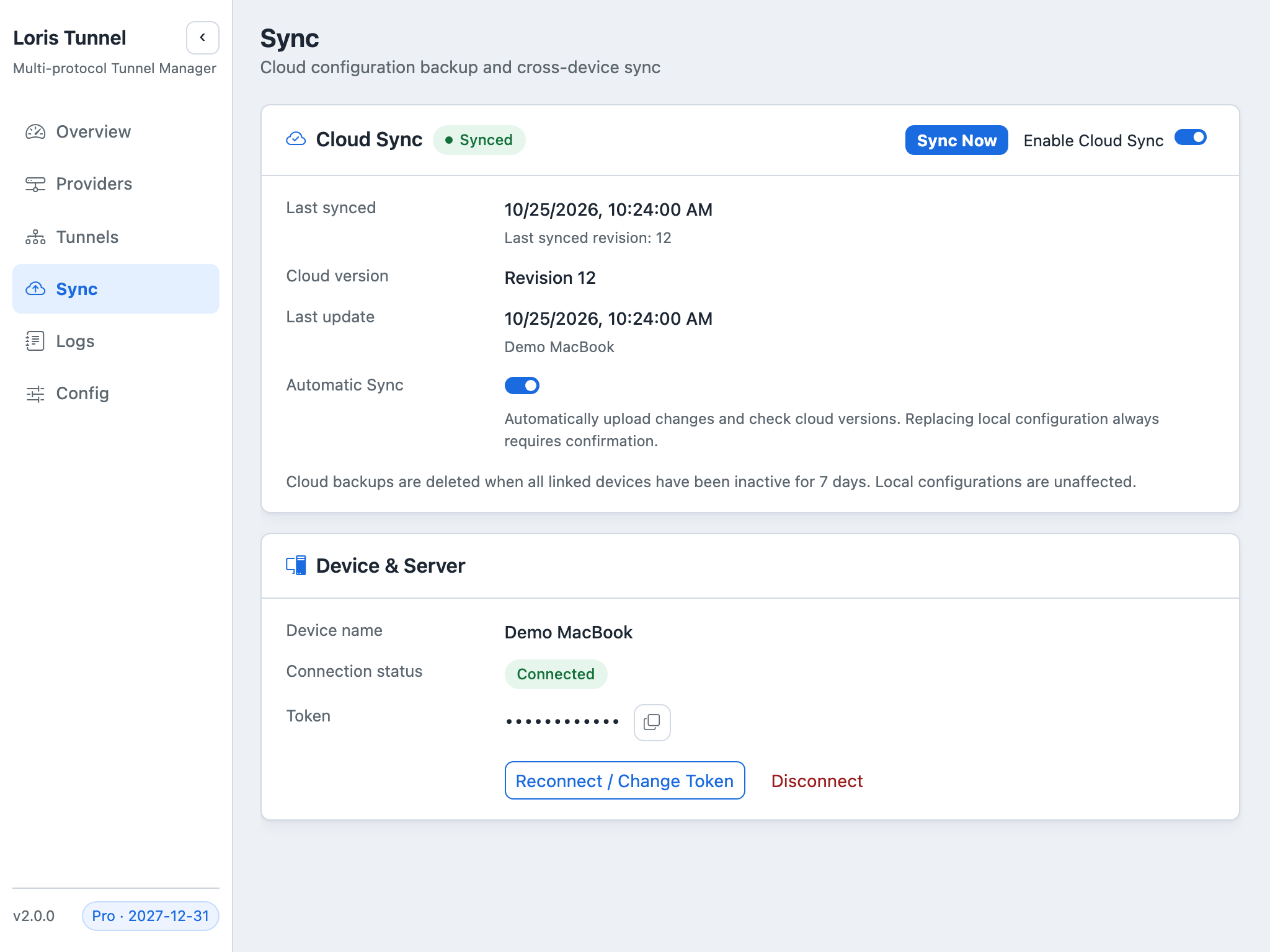
- Open Sync and enable Cloud Sync.
- Generate a Token for a new space or enter the Token for an existing one. Save it securely; generating another Token creates another space.
- Check the device name, use Test Connection if needed, and select Connect.
- Read the resulting status. Connecting checks the cloud immediately and uploads this configuration if the space is empty.
- Use Sync Now when ready to synchronize. Automatic Sync is off by default; enable it only if you want local changes uploaded automatically.
The Token is stored in macOS Keychain or Windows Credential Manager. Environment-specific connection settings live beside the configuration in sync.dev.json or sync.prod.json, without a plaintext Token.
Restore the cloud revision
On another device, activate Pro and connect using the same Token. If a cloud revision is available, review the revision and local state before choosing Use cloud. If both devices changed, decide which whole configuration should win; this is not a field-by-field merge.
Confirmation replaces the entire local TOML, including passwords and license fields. Active tunnels stop first; the app saves config.toml.before-restore, applies the cloud file and starts eligible tunnels according to the restored auto-start and manual-stop settings.
The current desktop UI presents the available cloud revision and conflict choices. It does not expose a historical-version browser; do not expect a date-based restore picker.
Verify the restored configuration
Check jump hosts, groups, port assignments and the effective configuration directory. Install provider CLIs, sign in, provide keys and credentials, and rebind FRP servers as needed. Start one representative tunnel manually before relying on auto-start.
Common questions
Will enabling automatic sync silently replace my local file?
No. Replacing the local configuration requires confirmation. Automatic upload and cloud-version checks are separate from accepting a restore.
Is cloud backup a permanent archive?
No. The current service can delete cloud backups after all linked devices have been inactive for seven days. Keep a separate local backup for long-term retention; local configuration is unaffected by cloud expiry.
Why is a restored key path unusable?
A path from Windows may not exist on macOS, or vice versa. Transfer the actual key securely and update the local path, or configure an appropriate SSH agent.