Share Localhost with Microsoft Dev Tunnel
Version and screenshots
This guide describes the current source version. Published installers may have fewer features; check your build against the release notes. Screenshots use demonstration data and a Pro example state.
A local web app is useful on your own computer, but a teammate or webhook sender cannot normally reach its localhost address. Microsoft Dev Tunnel gives that service a forwarding URL. Loris Tunnel manages its official CLI and connection settings from the desktop.
Before you start
Install Loris Tunnel on Windows or macOS and run a local service, for example an HTTP application at http://127.0.0.1:3000. You also need a GitHub or Microsoft account. In the current Loris integration, each Dev Tunnel publishes one loopback service on 127.0.0.1, localhost, or ::1.
Install the CLI and sign in
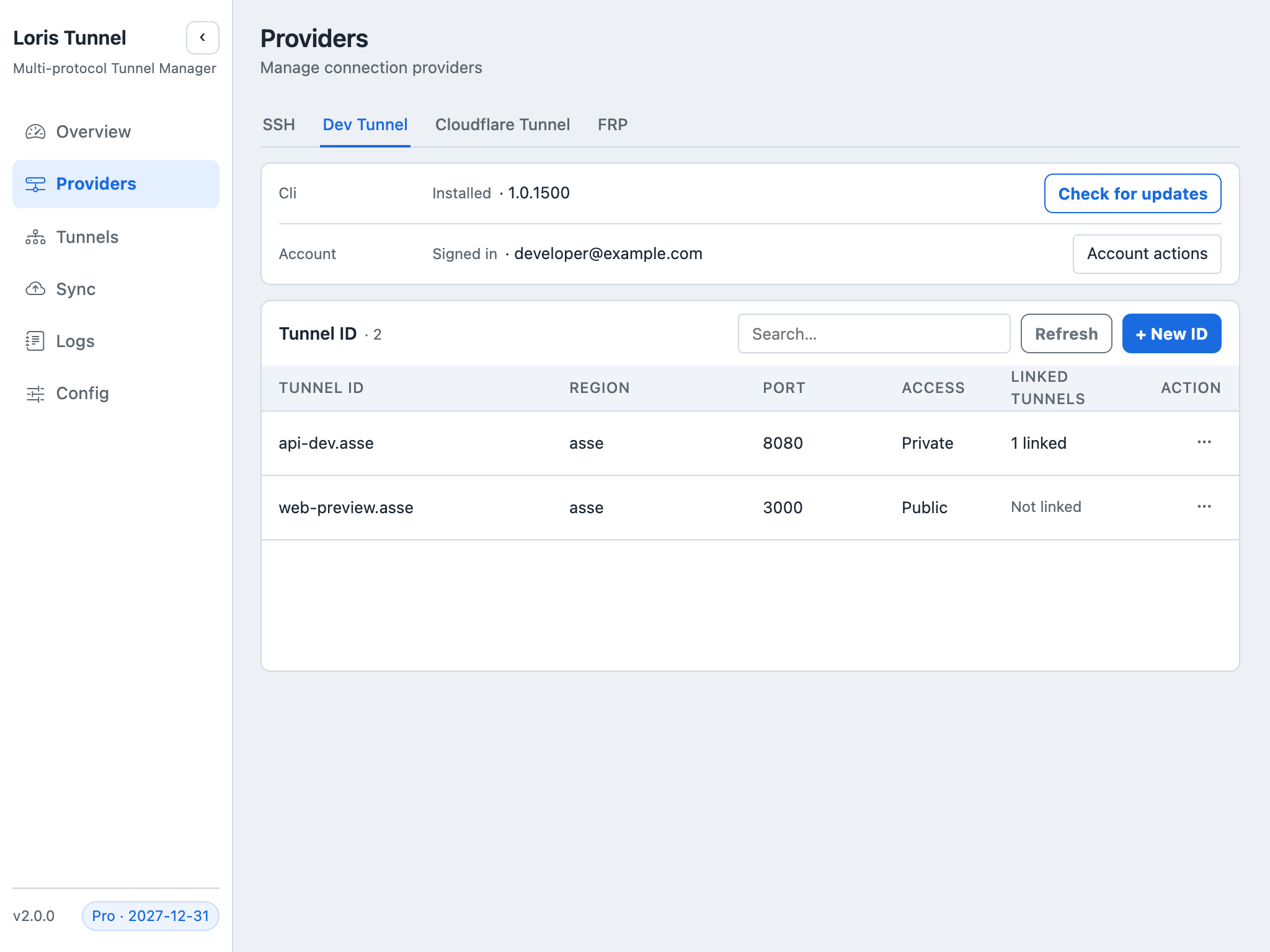
- Open Providers → Dev Tunnel.
- Choose Install if the official Dev Tunnel CLI is missing. It is downloaded on demand rather than bundled into Loris Tunnel.
- Sign in using GitHub or Microsoft and complete the browser flow.
- Refresh the provider status and check the connected account before selecting tunnel resources.
Loris uses Microsoft's CLI; it does not replace the provider's account or service permissions. Microsoft's installation and hosting guide documents the underlying tool.
Create or bind a tunnel
- Open Tunnels, create a tunnel and select Dev Tunnel.
- Enter a recognizable name and a local origin such as
http://127.0.0.1:3000. - Choose a new tunnel or an available existing tunnel resource. Check the account, region and port settings shown in the dialog.
- Leave access at Private unless anonymous access is intended, then save and start.
- Copy the address reported by the running CLI. A saved or previewed URL is not proof that the host process is running.
Private versus public access
Private is the default. Visitors must satisfy the provider's authentication requirements; a browser sign-in response can be expected even when the local app is healthy. Public allows anonymous visitors, which can be necessary for a webhook sender without an interactive login. Publish only endpoints intended for that audience.
Microsoft documents the default authentication model and anonymous access in its Dev Tunnel security guide. Choose this setting deliberately rather than changing it just to clear an authentication response.
Verify the connection
First open the local origin on the host computer. Then start the tunnel and open the returned URL from the intended client, signing in if the tunnel is private. Finally, stop the tunnel and check that the publishing session ends. These checks distinguish origin health, CLI hosting and visitor access.
Common questions
Why does a running tunnel still ask me to sign in?
Private access protects the forwarding endpoint independently of your local app. A login requirement does not mean the origin is down. Test as an authorized visitor.
Why did another device fail after restoring my configuration?
CLI login credentials stay in its system credential store. They are not part of TOML exports or cloud backups. Install the CLI and sign in on each host device.
Why can I not start a fourth tunnel?
The free plan's three-tunnel limit is shared across all providers and includes starting and reconnecting tunnels. See groups and running limits.